Video summarizer
Ask ChatCut to review your video and its transcript, then summarize the key points with timestamps. Check the source moments before using the summary.
- A professional look starts before the edit, with lighting.
- The edit is where the video comes together: cut the dead air and keep the energy tight.
- The video closes on ChatCut running inside Antigravity, editing on a real timeline.
"The editing part is where the magic happens." · from the transcript
Made from this 23-second tutorial's own transcript (4 lines).







Trusted by 400,000+ creators
How it works
How to use the video summarizer
- 01
Describe the summary you need
Write your request on this page, open ChatCut, and sign in free. State the topic, audience, output length, and whether you want timestamps beside each point.
- 02
Add and reference the source
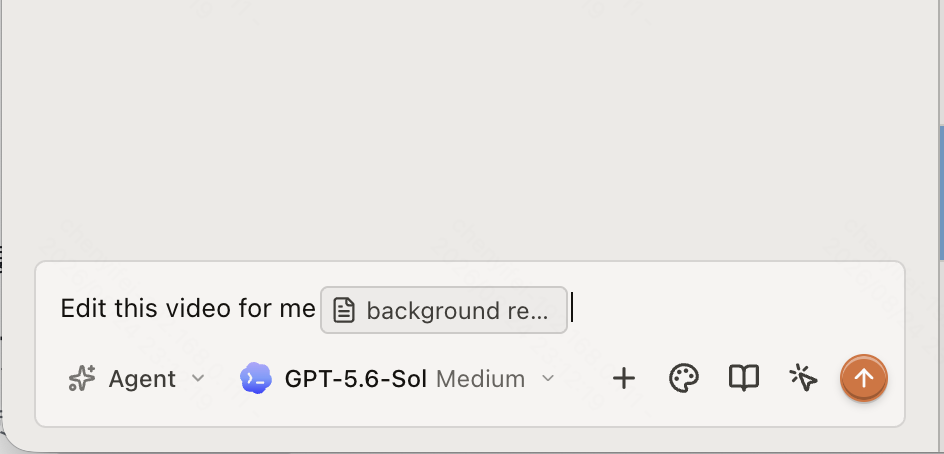
Use My Assets → Upload → Files… to import the video and wait for processing. In the AI panel, select Agent, enter @ to reference the video, and select Send message with your summary instructions.
- 03
Check the source moments
Review the reply beside the video and its transcript. Put the source on the Timeline, open Transcript, and click relevant words to check the suggested moments before using the notes for another edit.
Why ChatCut
Why use a video summarizer in your editing project
-
Keep the picture in the review
Ask the Agent to consider visible actions alongside speech. The AI video editor keeps the source footage available for checking what the summary describes.
-
Choose a useful output format
Request five bullets, a short paragraph, or a chapter outline in the Prompt. State the audience and the question you need the notes to answer.
-
Ask for source timestamps
Request a time beside each important point, then play that section to verify it. Use Selection Mode to reference an exact clip, time, or transcript passage in a follow-up.
-
Separate statements from observations
Ask for separate notes on what the speaker says and what the picture shows. Mark unclear passages for review rather than treating a plausible explanation as a confirmed event.
-
Give the Agent the intended source
Use an @ reference so the request identifies the recording or selection you mean. The Prompt Composer guide explains how references carry project context.
-
Take the useful moments into an edit
Keep the original in the project and use the reviewed notes to plan a shorter cut. For highlight editing, Long Video to Shorts adds a source-range plan before cutting.
Tips
Get useful notes from an AI video summarizer
Give the review a focus, then check the resulting claims against the recording.
-
Ask one editorial question
Specify the question, output length, and timestamps so the first review stays focused on the information you need.
-
Separate speech from visible actions
Request separate notes on spoken claims, visible actions, and uncertain interpretations so a summary preserves their differences.
-
Replay the cited moments
Identify whether timestamps refer to the source or edited timeline, then replay surrounding context to verify each important point.
Use cases
Video summarizer ideas for your next review
-
Turn key points into an editing brief
Choose the strongest points from your reviewed notes, then ask for separate clips with enough context to stand alone. Check each cut beside its transcript and revise the captions in the same project.
-
Review an interview before choosing quotes
List the main arguments, then replay the surrounding exchange before selecting a quote. In a two-person interview, keep the question and speaker attribution with any answer that depends on them.
-
Plan clips from a longer conversation
Use verified key moments to plan a set of shorts from one podcast episode. Give each clip its own setup and payoff so the point survives outside the full conversation.
-
Check a recap against the edited sequence
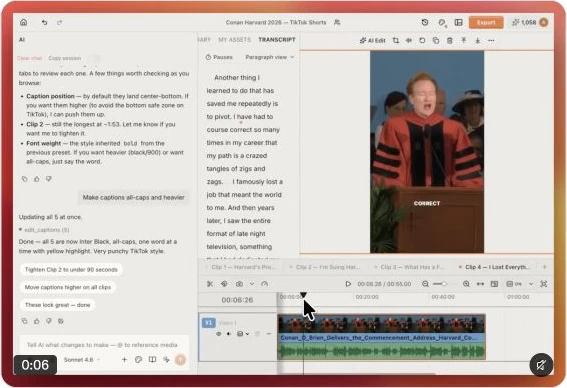
Replay the selected short beside its transcript before writing a recap. Check that the caption wording and the final cut still support each point in your notes.
Keep editing
Take the summary back to the footage in ChatCut
Use the checked moments to guide your next edit, trim the relevant sections, and arrange them on the timeline. If your source is a separate interview recording, start with audio transcription before asking for notes.
- Conversational editing
- Text-based editing
- Auto-captions
- Motion graphics
- AI voiceover
- Generate clips
- Noise removal
- Multi-track timeline
-
You Can Now Edit Videos with Grok Bot
Edit with Grok Bot -
How to Make 3× the Content With AI (No Editing Experience)
Turn long videos into shorts -
I Turned One Product Photo Into a Full Ad With ChatGPT
Product ads skill -
How to Create Insane Motion Graphics with Astra 6
AI motion graphics
Skills
Hundreds of skills for any video
100+ Skills. No experience needed. Start in one click.






FAQ
Video summarizer FAQ
How do I summarize a video in ChatCut?
Add the video through My Assets and reference it in an Agent request. Ask for a format, such as five bullets with timestamps, and state the focus. Check the reply against the source.
Does the summary use the picture or only the transcript?
The Agent can use the transcript and inspect picture and sound when reviewing footage. Ask it to distinguish visible actions from speech. Replay ambiguous moments yourself before treating them as confirmed facts.
Can I use it as a YouTube video summarizer?
This page opens an Agent request in ChatCut, where you add an accessible source file. It does not provide a YouTube URL import field or downloader here. If you need the text already available on the platform, see the YouTube transcript guide.
Can I get timestamps with the summary?
Yes, request timestamps beside the key points. Specify the original recording or edited timeline, then verify the suggested moments. A timestamp helps locate evidence; check the full passage too.
Is summarizing free?
Summarizing uses built-in Agent conversation credits, and usage varies with the request and context. Transcription, uploads, manual editing, and export do not consume credits. The credits policy explains the difference; footage length alone does not establish the total charge.
What video formats can I add?
Supported video extensions include MP4, MOV, WebM, MKV, AVI and TS. H.264 in MP4 is recommended for broad compatibility because a recognized extension can still contain an unsupported codec. Check supported formats and confirm the file plays if importing fails.
How do I check the summary for mistakes?
Verify names, figures, quotes, and timestamps against the source. Ask the Agent to flag uncertainty rather than fill gaps, and keep enough surrounding context to judge the meaning. For speech, the Transcript panel lets you click a word to return to its time.
Can I edit the video after summarizing it?
Yes. Keep the source in My Assets while arranging it on the Timeline. Give the Agent a separate editing instruction when you want a cut. Agent requests use credits; manual editing does not.
Related
More video review and transcription tools
All AI apps
Audio & voice
Captions, text & translation
AI video & images
All free tools
Convert & compress
Edit video
Audio & voice