
The best video editing software for Windows depends on your PC’s hardware and how you want to pay. For most people with a 16 GB+ PC, DaVinci Resolve is the strongest choice because its free edition handles multi-track editing, color grading, and audio up to 4K at 60 fps without adding a watermark. If you just need a quick 1080p cut on an everyday laptop, Microsoft Clipchamp is already on Windows 11, while Adobe Premiere Pro leads for Creative Cloud teams and ChatCut fits creators who want an AI agent to assemble local folders on an editable timeline.
Key Takeaways
- Start at $0 before subscribing. DaVinci Resolve (up to 4K60), Microsoft Clipchamp (up to 1080p with a Microsoft login), Shotcut, and Kdenlive all export clean MP4s when you stick to free assets.
- Watch for trial watermarks. Consumer downloads like Wondershare Filmora and CyberLink PowerDirector Essential let you edit freely, then stamp a watermark on your finished file until you pay.
- Check x64 versus Windows on ARM first. Copilot+ Snapdragon laptops get native ARM64 builds from DaVinci Resolve, Premiere Pro, PowerDirector, Filmora, and Shotcut, whereas several desktop editors still require 64-bit Intel or AMD (x64) Windows.
- Compare three-year cost. One-time licenses such as DaVinci Resolve Studio ($295) or PowerDirector 2027 ($139.99) cost less over three years than recurring monthly plans. Switching between PC and Apple hardware? See our Mac video editing software guide.
Disclosure: ChatCut publishes this guide and makes one of the editors on this list. Competitor specs, free-tier rules, and US prices come from official documentation and pricing pages checked on November 18, 2026, and we list our own limits plainly—including that our Windows app runs on x64 PCs only.
Windows Video Editors at a Glance
| Editor | Best for | Windows support | Free-plan limits | Paid from (US) | Learning curve |
|---|---|---|---|---|---|
| DaVinci Resolve | Pro editing, color, and audio at $0 | Win 10/11 (x64) & Win 11 ARM64; 16 GB+ RAM | Up to 4K60, watermark-free; Studio locks Neural AI | $295 one-time (Studio) | Steep |
| Microsoft Clipchamp | Quick trims on Windows 11 | Win 11 built-in, Win 10 Store, browser | 1080p max on free items; Microsoft sign-in required | $9.99/mo via Microsoft 365 Personal | Easy |
| Adobe Premiere Pro | Creative Cloud and agency teams | Win 11 24H2+ (x64 & ARM64) | 7-day trial only; no permanent free tier | $22.99/mo (annual, billed monthly) | Steep |
| CapCut Desktop | Short-form social templates | Win 10/11 (64-bit); 4–8 GB RAM | Clean export on free items; Pro items add a watermark or need Pro | $19.99/mo or $179.99/yr | Easy |
| CyberLink PowerDirector | Guided consumer effects | Win 10/11 (x64 & ARM64); 8 GB+ RAM | Essential free version stamps an export watermark | $54.99/yr promo ($79.99 list) or $139.99 once | Easy to moderate |
| VEGAS Pro | Windows-only audio-led timelines | Win 11 (x64; ARM64 listed as coming soon); 16 GB+ RAM | 15-day free trial; no permanent free edition | Subscription or perpetual; check current pricing | Moderate |
| Wondershare Filmora | Preset-heavy YouTube videos | Win 7–11 (x64), Win 10/11 ARM; 8 GB+ RAM | Free version stamps a watermark on exports | $49.99/yr (Basic) or $79.99 once | Easy |
| ChatCut | Editing on Windows with an AI agent | Win 10+ (x64 only); internet required | Manual edits, captions, local 4K included; 60-min cloud cap | $25/mo or $252/yr (100 credits/mo) | Easy |
| Shotcut | Lightweight open-source editing | Win 10/11 (x64 & ARM64, installer or ZIP) | GPLv3 open source; watermark-free, offline, no login | $0 (no paid tier) | Moderate |
| Kdenlive | Customizable open-source timelines | Win 10/11 (installer or standalone) | GPL open source; watermark-free, offline, no login | $0 (donations optional) | Moderate |
How We Chose These Windows Editors
Windows buyers run into two traps constantly: “free” downloads that watermark finished exports, and pro suites that crawl on 8 GB laptops or Snapdragon PCs. We evaluated active Windows editors across four checks:
- Windows 10 and 11 hardware fit: Native x64 and Windows on ARM support, plus realistic memory and GPU floors.
- Free-tier export honesty: Whether you get a clean 1080p or 4K MP4 without a watermark, time cap, or credit card.
- Timeline depth and handoff: Multi-track editing, captions, proxy workflows, and project interchange.
- Clear ownership cost: Upfront US monthly, annual, or perpetual pricing, excluding discontinued software.
Competitor facts and prices below are based on the official documentation and pricing pages, checked on November 18, 2026. Because our editorial computer runs macOS rather than a Windows test bench, we did not run cross-app Windows export benchmarks. For our own entry, we ran a hands-on multi-clip assembly and local 4K export check on Desktop on November 18, 2026, and report Windows requirements strictly from our official Desktop documentation.
The 10 Best Video Editing Software for Windows PCs
1. DaVinci Resolve: Best free pro-grade editor for Windows
DaVinci Resolve combines timeline editing, node-based color grading, Fusion VFX, and Fairlight audio post-production inside one Windows installer. Its free tier powers commercial YouTube channels and indie films without a subscription.
- Best for: Creators with a 16 GB+ PC who want pro editing, color, and audio mixing at $0—or a buy-once Studio upgrade.
- What stands out:
- Free exports reach 3840×2160 Ultra HD at 60 fps without adding a watermark, backed by pro color wheels and Fairlight audio buses.
- Ships native builds for both 64-bit x64 Windows and Qualcomm Snapdragon Windows on ARM laptops.
- DaVinci Resolve Studio is a $295 perpetual license adding 10-bit H.264/H.265 hardware decoding, HDR scopes, and Neural Engine AI tools like Magic Mask, Voice Isolation, and text-based editing.
- Limits:
- High hardware floor: Blackmagic lists 16 GB of RAM as the Windows minimum (32 GB when using Fusion) plus an integrated GPU or a discrete GPU with at least 4 GB of VRAM that supports OpenCL 1.2 or CUDA.
- AI speech-to-text editing and resolutions above 4K60 require Studio.
- Pricing: Free at $0; DaVinci Resolve Studio costs $295 once.
- Skip it if: Your laptop has 8 GB of RAM and integrated graphics, or you want ready-made social templates.
2. Microsoft Clipchamp: Best built-in editor for quick Windows 11 cuts
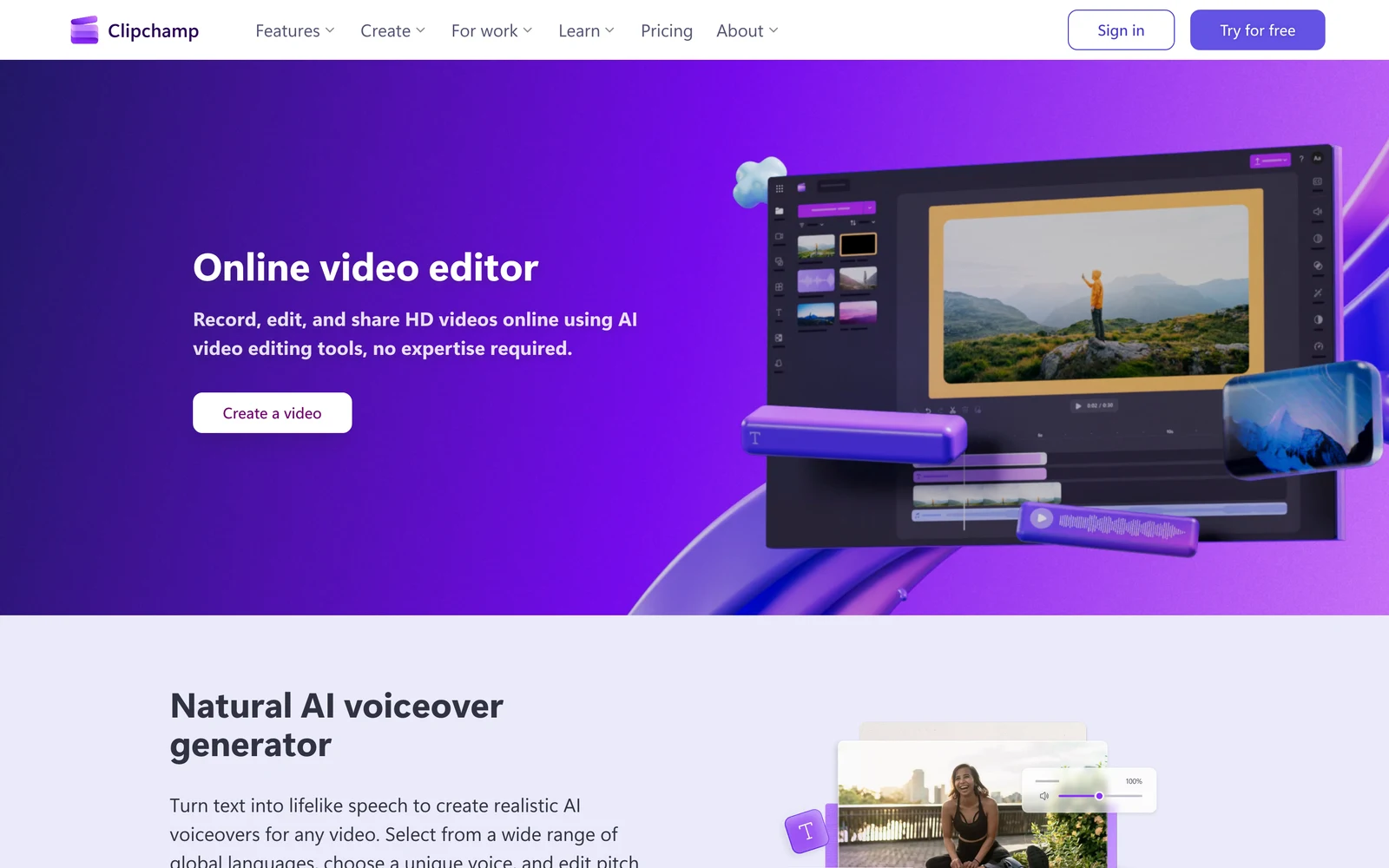
Microsoft Clipchamp replaced Windows Movie Maker as the video editor preinstalled on Windows 11, combining simple multi-track trims with screen recording, auto-captions, and OneDrive sync.
- Best for: Windows 11 users who need fast 1080p trims, webcam recordings, and subtitles without installing heavy software.
- What stands out:
- Exports up to 1080p HD without adding a watermark when your project uses personal media and free stock items.
- Includes automatic captions and AI text-to-speech voiceovers on the free personal tier.
- Existing Microsoft 365 Personal or Family subscribers get Clipchamp’s premium features—4K UHD export, premium stock, and Brand Kit—at no extra editor charge.
- Limits:
- Requires a Microsoft account login and relies on web-connected services rather than running as a strictly offline NLE.
- Free exports stop at 1080p, and lacks color scopes, advanced keyframes, or multi-cam sync.
- Pricing: Free up to 1080p on Clipchamp’s pricing page; 4K included with Microsoft 365 Personal ($9.99/month or $99.99/year).
- Skip it if: You want 4K exports without Microsoft 365 or work fully offline.
3. Adobe Premiere Pro: Best for Creative Cloud and agency workflows
Adobe Premiere Pro remains the standard for agencies, corporate video teams, and editors round-tripping projects across After Effects, Photoshop, Audition, and Frame.io. Adobe dropped “Pro” from the name in January 2026, so you will now see it sold as Adobe Premiere.
- Best for: Freelancers and production teams collaborating inside Adobe Creative Cloud.
- What stands out:
- Dynamic Link sends timeline segments directly to After Effects without intermediate renders, while Frame.io pins client review notes to exact frames.
- Mature spoken-word AI tools, including text-based rough cuts, Speech Enhance cleanup, and Auto Reframe.
- Per Adobe’s technical requirements, Premiere runs natively on Windows on Arm (Snapdragon X or NVIDIA RTX Spark) as well as x64, but every Windows install now needs Windows 11 version 24H2 or later.
- Limits:
- Subscription-only with no free tier; letting your plan lapse locks
.prprojediting. - No Windows 10 support. Adobe lists 8 GB of RAM as the minimum (16 GB of shared memory on Windows on Arm) and recommends 16 GB for HD and 32 GB for 4K.
- Subscription-only with no free tier; letting your plan lapse locks
- Pricing: 7-day trial, then US$22.99/month on an annual plan billed monthly (Adobe’s North America rate); check current pricing for prepaid and month-to-month options on Adobe’s pricing page.
- Skip it if: You prefer one-time licenses or never share Adobe project files.
4. CapCut Desktop: Best for short-form social video and templates
CapCut Desktop brings fast animated captions, vertical templates, background cutouts, and beat-synced effects to modest Windows 10 and 11 laptops.
- Best for: TikTok, Reels, and Shorts creators prioritizing speed and social caption styles on lighter PCs.
- What stands out:
- Light hardware footprint: CapCut’s desktop guide lists a 4 GB RAM minimum (8–16 GB recommended) and runs smoothly on integrated graphics.
- Exports clean files without adding a watermark when every effect, font, and caption preset on your timeline comes from the free tier.
- Limits:
- Premium transitions, auto-caption templates, vocal isolation, and certain export options carry a Pro badge; leaving a Pro item on the timeline adds a watermark or an upgrade prompt until you remove it or upgrade, per CapCut Standard vs. Pro and CapCut’s watermark guide.
- Thin audio routing and color tools for long-form documentaries.
- Pricing: Free base tier; CapCut’s Standard vs. Pro guide lists CapCut Pro at $19.99/month or $179.99/year, and notes prices vary by region and platform.
- Skip it if: You dislike policing Pro-badged effects before hitting Export.
5. CyberLink PowerDirector: Best Windows consumer all-rounder with guided effects
CyberLink PowerDirector pairs guided consumer wizards with a true multi-track Windows timeline, hardware-accelerated encoding, and stock media packs.
- Best for: Windows home users and solo YouTubers who want guided effects and a choice between annual or perpetual billing.
- What stands out:
- Sells both PowerDirector 365 (annual subscription with monthly updates and stock libraries) and PowerDirector 2027 (one-time perpetual license).
- Runs on 64-bit Windows 10/11 x64, and the PowerDirector 365 subscription supports Windows 11 ARM64 (Snapdragon X Elite), starting at 8 GB of RAM.
- Approachable wizards for motion tracking, stabilization, sky replacement, and auto-captions.
- Limits:
- The free download (PowerDirector Essential) stamps a PowerDirector watermark on exports, per CyberLink’s help page.
- Generative AI tools spend credits, and the perpetual edition excludes monthly feature drops.
- Pricing: On CyberLink’s pricing page, PowerDirector 365 lists at $79.99/year (often $54.99/year on promo), and PowerDirector 2027 perpetual is $139.99 once.
- Skip it if: You need a watermark-free $0 editor.
6. VEGAS Pro: Best Windows-only timeline for audio-heavy and long-form cuts
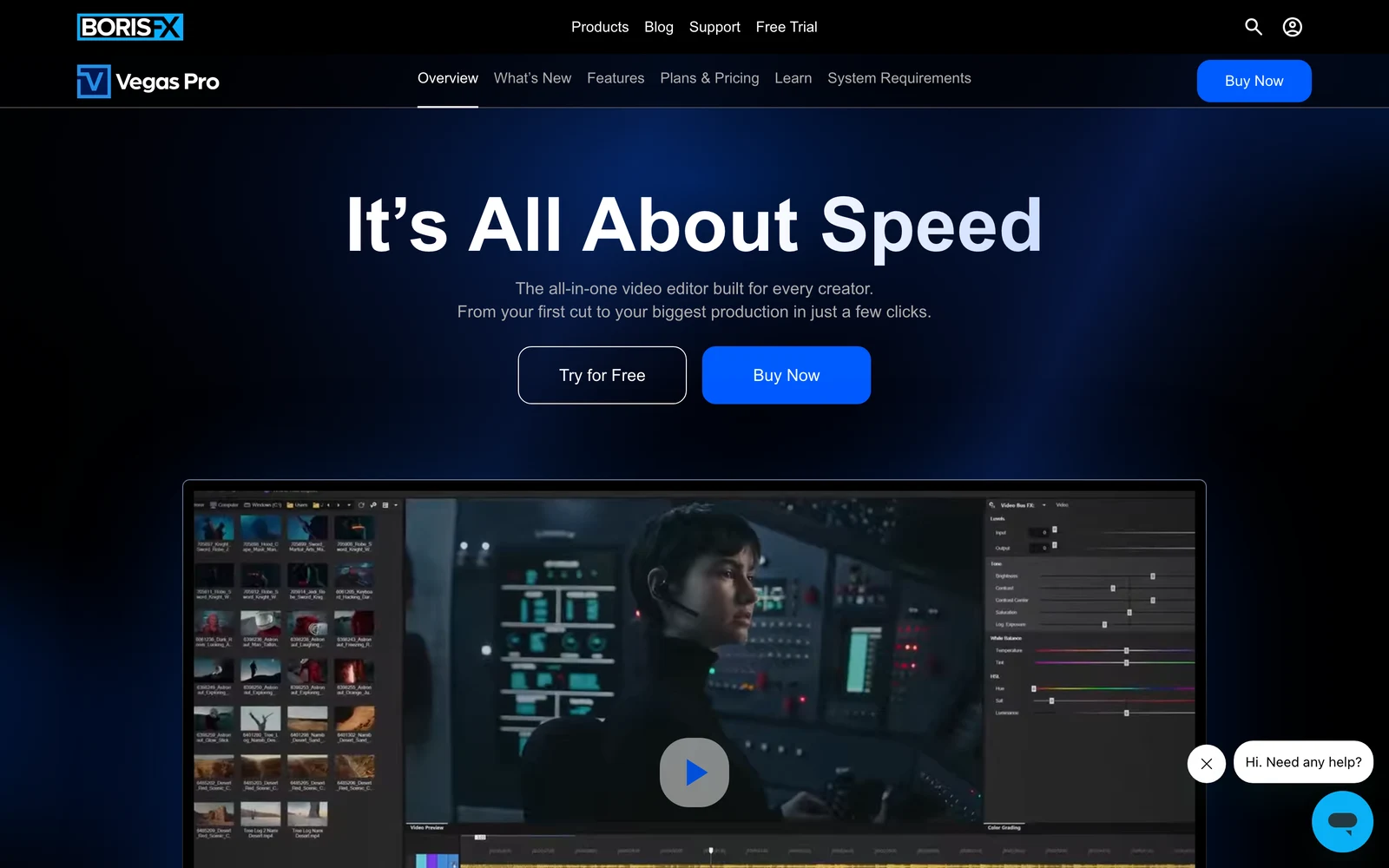
Part of Boris FX, VEGAS Pro is built exclusively for Windows. Born as a multitrack audio suite, it remains remarkably fast for mouse-driven crossfades, ripple trims, and VST audio chains.
- Best for: Long-form YouTubers, gaming editors, and audio-focused creators committed to Windows 11 x64 hardware.
- What stands out:
- Dragging one clip across another builds an instant real-time crossfade without switching tools, backed by DAW-grade track audio routing.
- VEGAS Pro Plans & Pricing offers both subscriptions and perpetual licenses; Plus and Ultimate bundle Sound Forge and Mocha tracking.
- Limits:
- Windows-only, with no macOS version; VEGAS’s system requirements list Windows 11, 16 GB of RAM, and 8 GB of VRAM as the minimum, with ARM support still marked “coming soon.”
- Free access is a 15-day trial, and the Storyblocks stock library comes only with subscriptions.
- Pricing: 15-day free trial, then subscription or perpetual licenses; the US prices load at checkout, so check current pricing on the plans page.
- Skip it if: You collaborate with Mac editors or want a permanent free version.
7. Wondershare Filmora: Best for preset-driven YouTube videos
Wondershare Filmora packs drag-and-drop lower thirds, split screens, LUTs, and transitions into a clean Windows interface beginners learn in an afternoon.
- Best for: Casual YouTubers, educators, and marketers wanting built-in visual presets without a pro learning curve.
- What stands out:
- Broad OS support: Filmora’s tech specs cover x64 Windows 7 through Windows 11 plus native Windows 10/11 on ARM, starting at 8 GB of RAM.
- Offers both annual plans and a one-time single-version perpetual license.
- Limits:
- Free exports include a Filmora watermark until you buy a license.
- Heavy AI features consume AI credits, which are excluded from the entry Basic annual plan.
- Pricing: Free watermarked trial; Windows plans on Filmora’s store start around $49.99/year (Basic), $59.99/year (Advanced), or $79.99 perpetual.
- Skip it if: You want clean $0 exports or dislike effect-pack upsells.
8. ChatCut: Best for editing on Windows with an AI agent
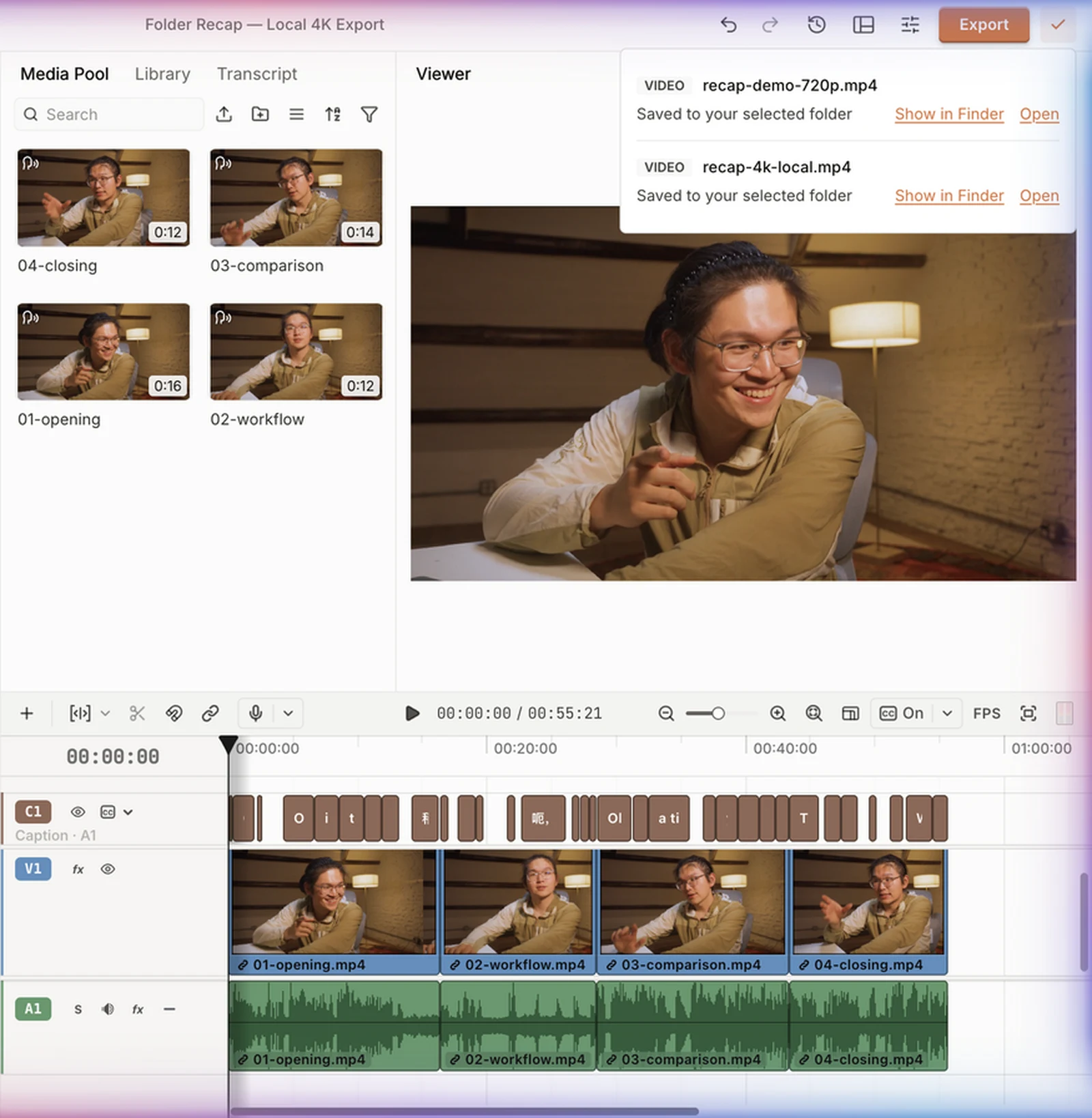
ChatCut is an AI video editor where you describe edits in plain language—or connect Claude Code or Codex—and an agent updates a real multi-track timeline you can keep refining by hand. Its native Windows Desktop app edits local folders directly and renders up to 4K on your PC.
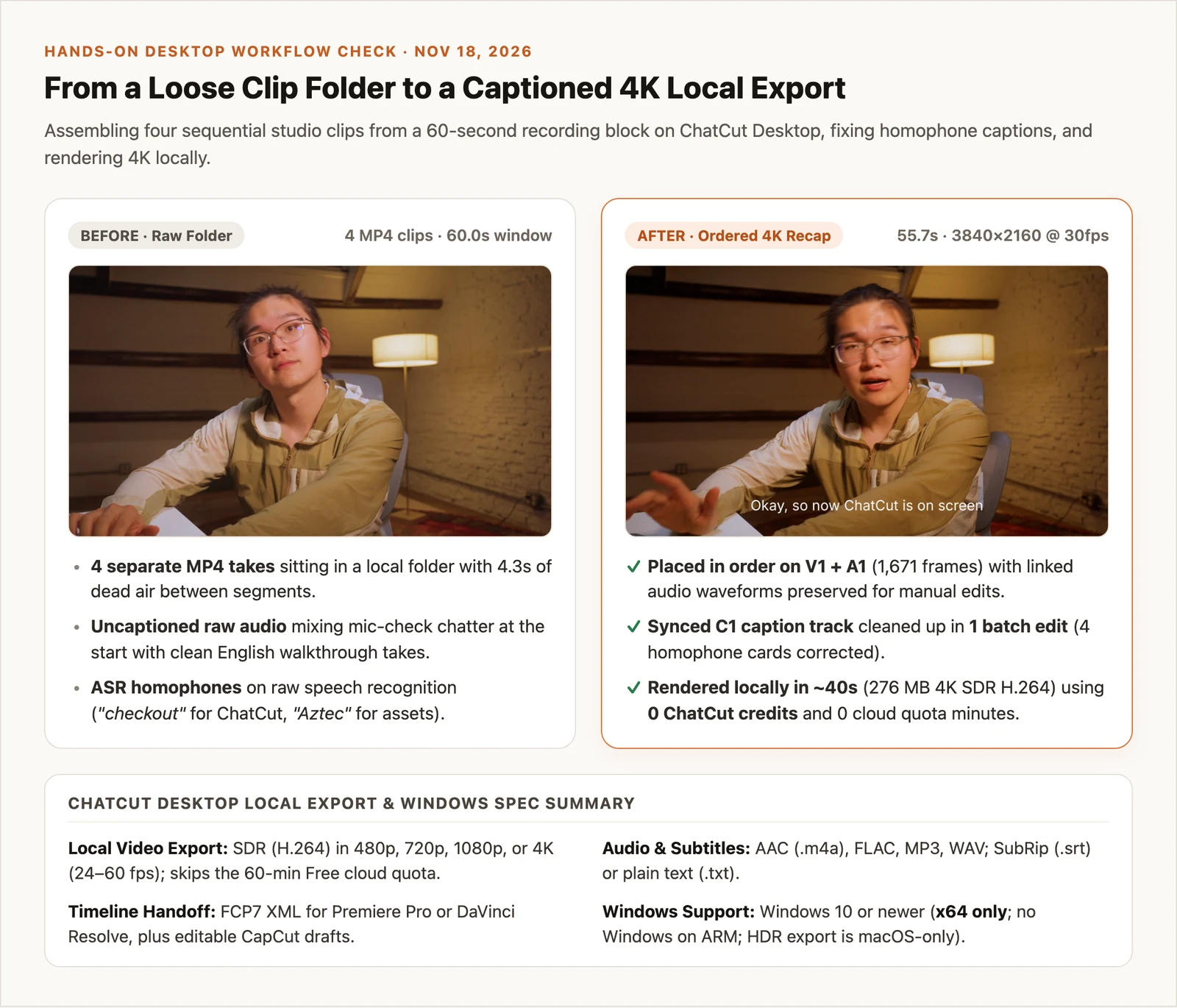
In our Desktop workflow check on November 18, 2026 (run on the macOS build, since our test machine is a Mac), we loaded a folder of four MP4 takes from a 60-second studio recording block, assembled them in order on V1 and A1 into a 55.7-second timeline, and ran automatic transcription. Reviewing the transcript caught four wrong caption cards (including “checkout” for ChatCut and “Aztec” for assets), which we fixed in one batch caption edit before rendering a 3840×2160 30 fps H.264 MP4 locally in about 40 seconds—spending 0 credits and zero minutes of the Free plan’s 60-minute cloud export cap.
- Best for: Windows 10/11 (x64) users who want an AI agent or Claude Code / Codex to cut and caption local folders with local 4K export.
- What stands out:
- Local SDR H.264 exports up to 4K, WAV/FLAC/MP3 audio, SRT subtitles, Premiere/Resolve XML, and editable CapCut drafts—with manual edits, transcription, captions, and exports costing 0 credits.
- External agents connected via Desktop’s local MCP use their own subscriptions for reasoning.
- Limits:
- x64 only: Requires Windows 10+ (x64); Windows on ARM and Linux are unsupported, and HDR export is macOS-only.
- Needs an internet connection for sign-in, sync, and cloud speech recognition; AI media generation requires a paid plan, built-in agent messages use credits, and it is not a pro color-grading suite.
- Pricing: Free core tier; paid plans from $25/month (100 credits) or $252/year.
- Skip it if: You use a Snapdragon ARM laptop, work offline, or need node-based color grading.
For more prompt-driven options, see our roundup of the best AI video editors.
9. Shotcut: Best lightweight open-source editor with no sign-in
Shotcut is a GPLv3 open-source editor built on FFmpeg that never asks for an account, internet check-in, or paid codec unlock.
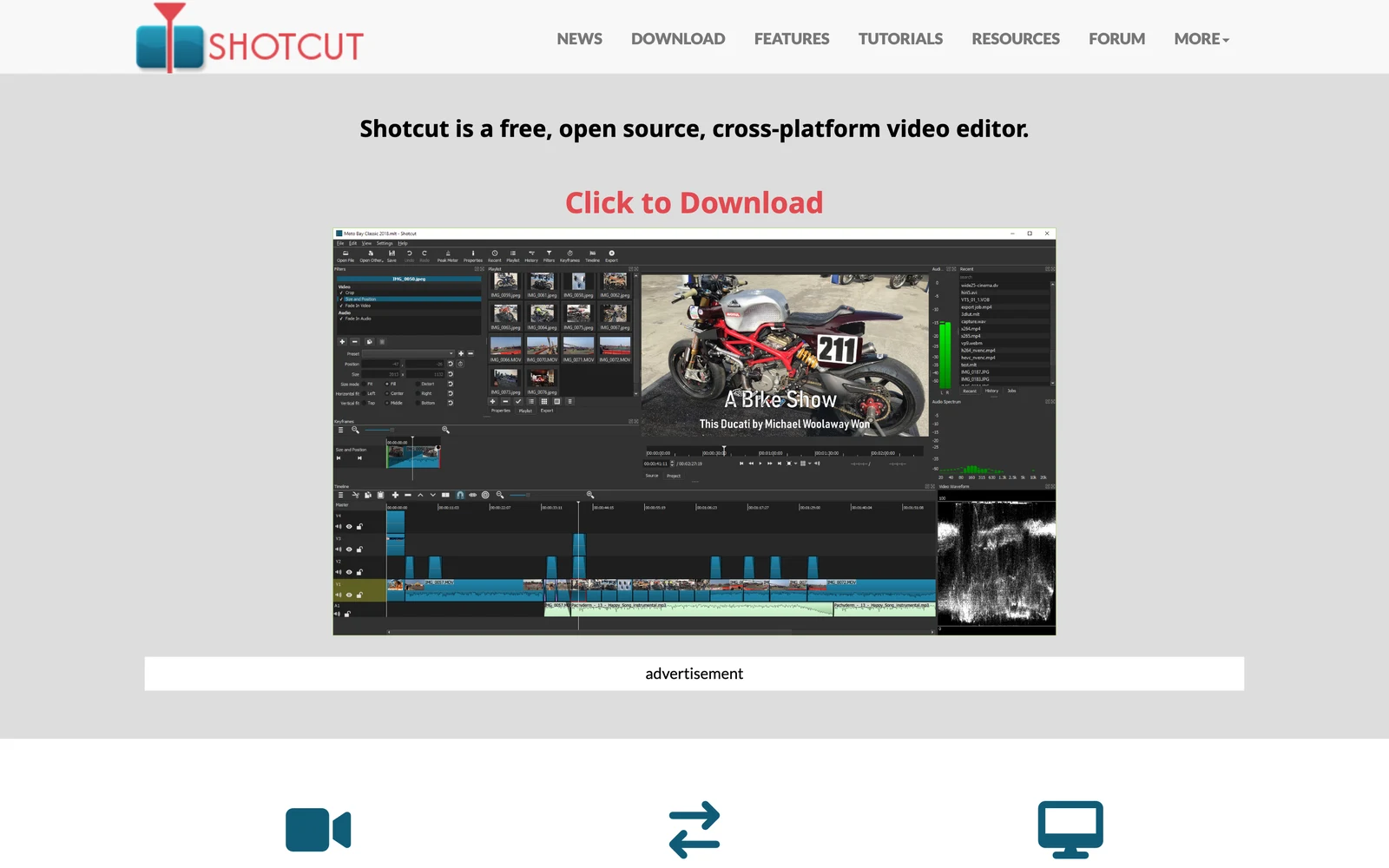
- Best for: Privacy-focused Windows users, locked-down PCs without admin rights, and Snapdragon ARM64 laptops needing an offline $0 editor.
- What stands out:
- Shotcut’s download page (v26.11.15) offers separate native x64 and ARM64 builds for Windows 10 (1809+) and Windows 11, both as installers and portable
.ziparchives. - Wide FFmpeg format support, 4K timelines, hardware encoding, and audio scopes with watermark-free exports.
- Shotcut’s download page (v26.11.15) offers separate native x64 and ARM64 builds for Windows 10 (1809+) and Windows 11, both as installers and portable
- Limits:
- Utilitarian interface with no built-in template store or trendy auto-caption animations.
- Manual keyframing feels slower than CapCut or Filmora; 16 GB RAM is recommended for 4K.
- Pricing: $0 under GPLv3 at shotcut.org.
- Skip it if: You rely on social caption templates or stock media libraries.
10. Kdenlive: Best free open-source multi-track editor for customization
Developed by KDE, Kdenlive is a GPL open-source multi-track editor offering Premiere-like customizable panel layouts, proxy editing, and color scopes on Windows 10 and 11.
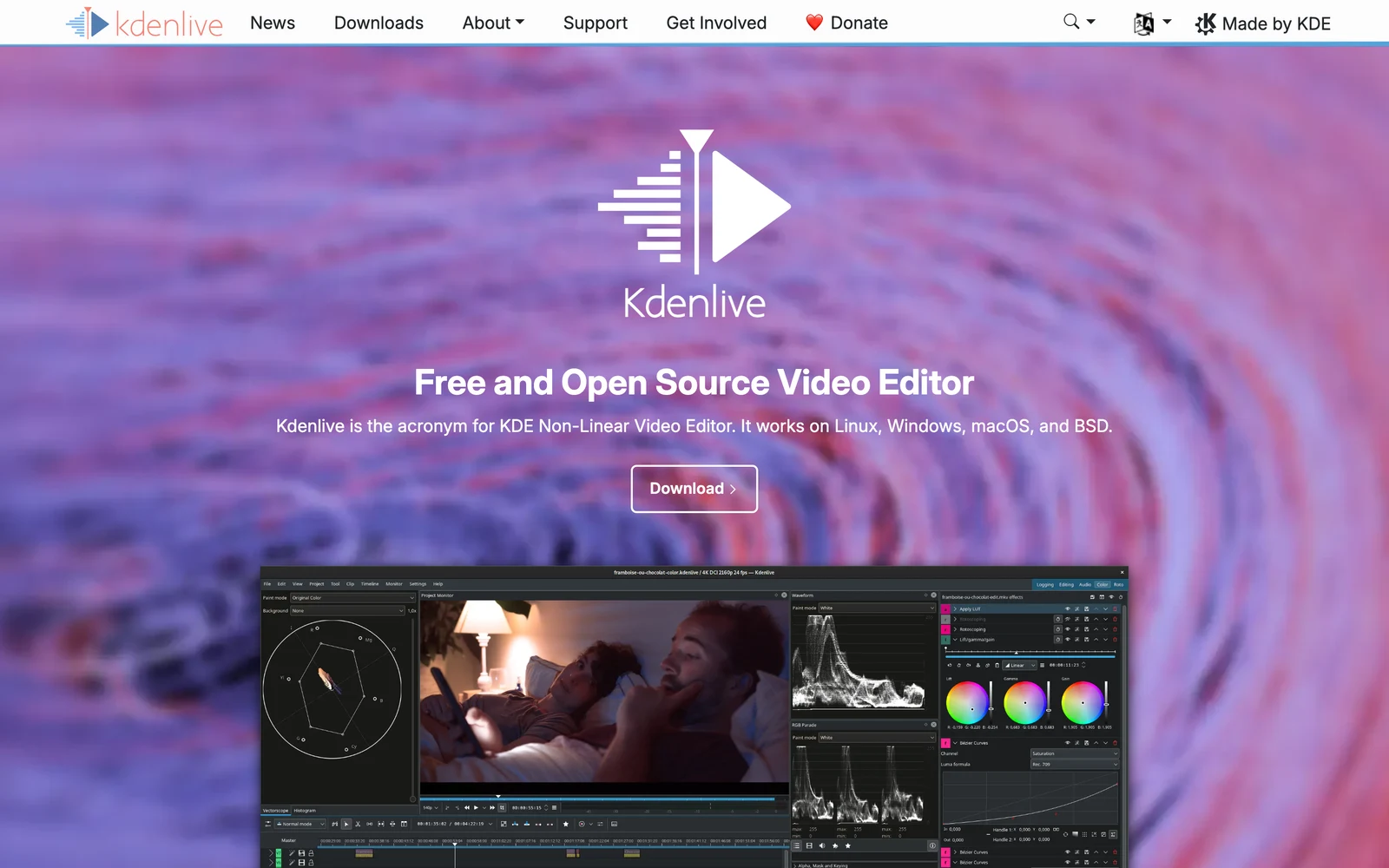
- Best for: Editors wanting a customizable traditional multi-track layout at $0 without DaVinci Resolve’s GPU demands.
- What stands out:
- Kdenlive’s downloads page (v26.08.3) provides Installable and Standalone Windows 10/11 packages that run offline with zero watermarks or accounts.
- Built-in proxy clip generation keeps 1080p and 4K timelines smooth on midrange 8–16 GB RAM PCs.
- Limits:
- Dense workspace takes longer for beginners to learn than Clipchamp.
- Main Windows packages target x86-64 rather than native ARM64, and local Whisper subtitles require separate setup.
- Pricing: $0 under GNU GPL at kdenlive.org.
- Skip it if: You want plug-and-play commercial templates or cloud team review.
Also Considered for Windows PCs
- VSDC Free Video Editor: A Windows-only editor that exports up to 4K without a watermark, though hardware acceleration and advanced masking require VSDC Pro (check current pricing).
- Movavi Video Editor: Approachable on Windows and Mac, though its free version can watermark exports and cap video at 60 seconds (or audio at half length), and its paid plans overlap directly with PowerDirector and Filmora (check current pricing).
- Adobe Premiere Elements: Now sold as a 3-year term license rather than a lifetime license (check current pricing), and its tech specs require Windows 11 24H2+ on x64 only, with no Windows on ARM support.
- HitFilm (and Windows Movie Maker): Still listed on outdated blogs, HitFilm was officially discontinued by Artlist on January 15, 2025, and Microsoft retired Movie Maker years ago in favor of Clipchamp—skip unofficial download mirrors.
Matching an Editor to Your Windows PC Hardware
Check Settings → System → About on your PC for RAM, processor type (x64-based versus ARM-based), and GPU before installing:
- 8 GB RAM laptops with integrated Intel Iris Xe or AMD graphics: Choose Clipchamp, CapCut Desktop, Shotcut, or Kdenlive (with proxies enabled). Recording tutorials on the same laptop? See how to screen record on Windows smoothly.
- 16–32 GB+ PCs with an NVIDIA RTX or AMD Radeon GPU: Run DaVinci Resolve, Premiere Pro, or VEGAS Pro with full GPU-accelerated 4K playback.
- Snapdragon Copilot+ (Windows 11 on ARM) laptops: Pick native ARM64 builds from DaVinci Resolve, Premiere Pro, PowerDirector, Filmora, or Shotcut; avoid x64-only apps (ChatCut Desktop, VEGAS Pro, and Premiere Elements).
How to Choose the Right Editor for Your Computer
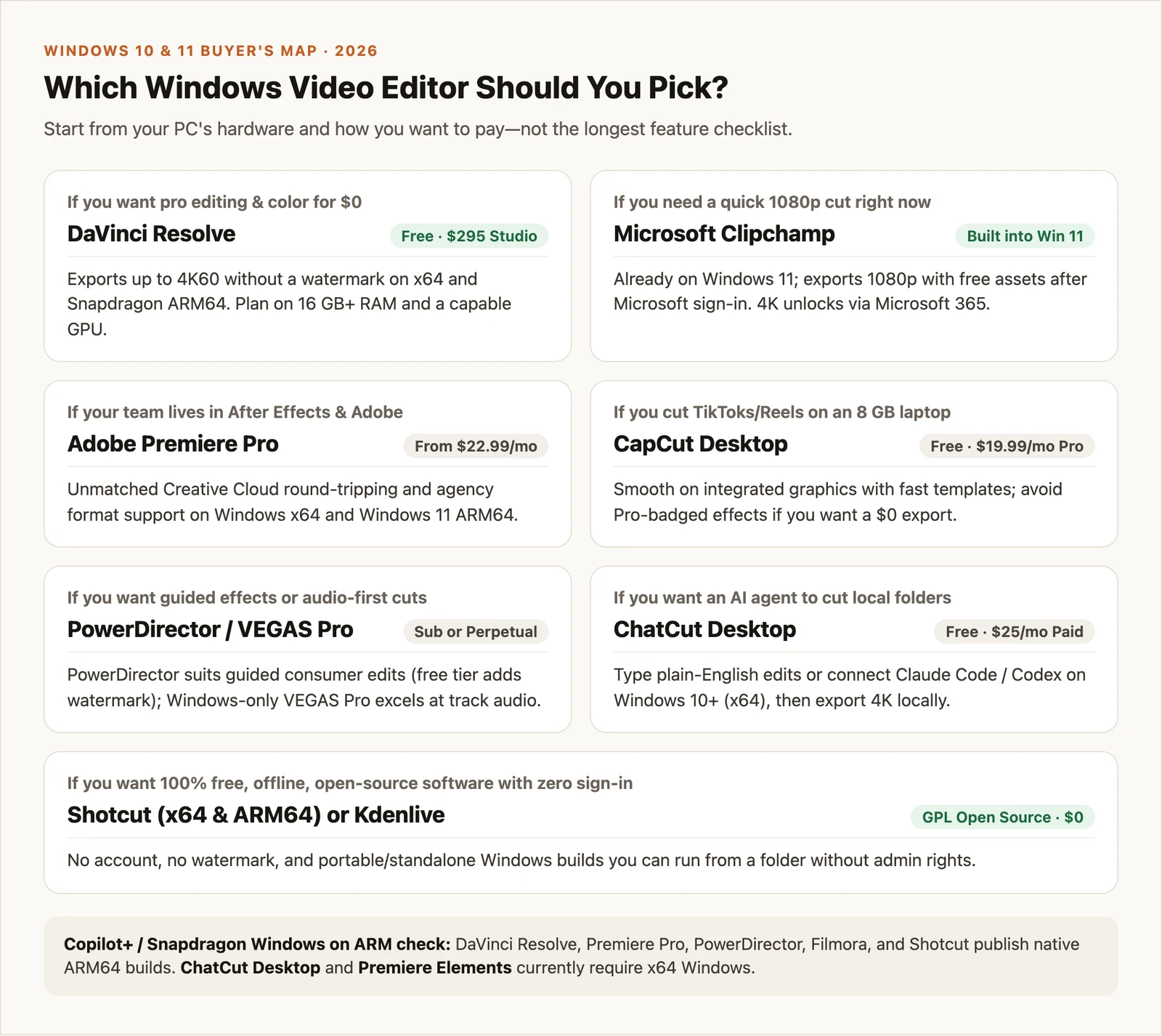
- If you want pro editing and color grading at $0 on a 16 GB+ PC: Pick DaVinci Resolve.
- If you need a fast 1080p trim on Windows 11 with zero install: Open Microsoft Clipchamp.
- If your team lives in After Effects, Photoshop, and Frame.io: Pick Adobe Premiere Pro.
- If you cut vertical TikToks or Reels on an 8 GB laptop: Pick CapCut Desktop and stick to free-tier assets.
- If you want guided Windows effects or fast audio-first timelines with a buy-once option: Pick CyberLink PowerDirector or VEGAS Pro.
- If you want an AI agent or Claude Code / Codex to cut local folders on an x64 PC: Pick ChatCut Desktop and render 4K locally.
- If you want offline, open-source editing with zero sign-in and portable ZIPs: Pick Shotcut or Kdenlive.